Most apps have a fixed set of deep links that has to work in every build: the home screen, a product page, checkout, a password reset, a few marketing links. The Lists tab in the tester holds that set, so a regression pass is a matter of opening each link and marking the result.
Open the tester in another tab to follow along. Everything below happens in the panel under the tester, on the Lists tab.
1. Build the list
The Recent and Lists tabs appear once you have generated a link. There are three ways to fill a list.
- From the tester. Paste a link, press Generate, then press Save next to Copy and Share. Give it a title and pick a list, or choose New list… in the picker to start one. Links on the Recent tab have a + button (Save to a list) that does the same.
-
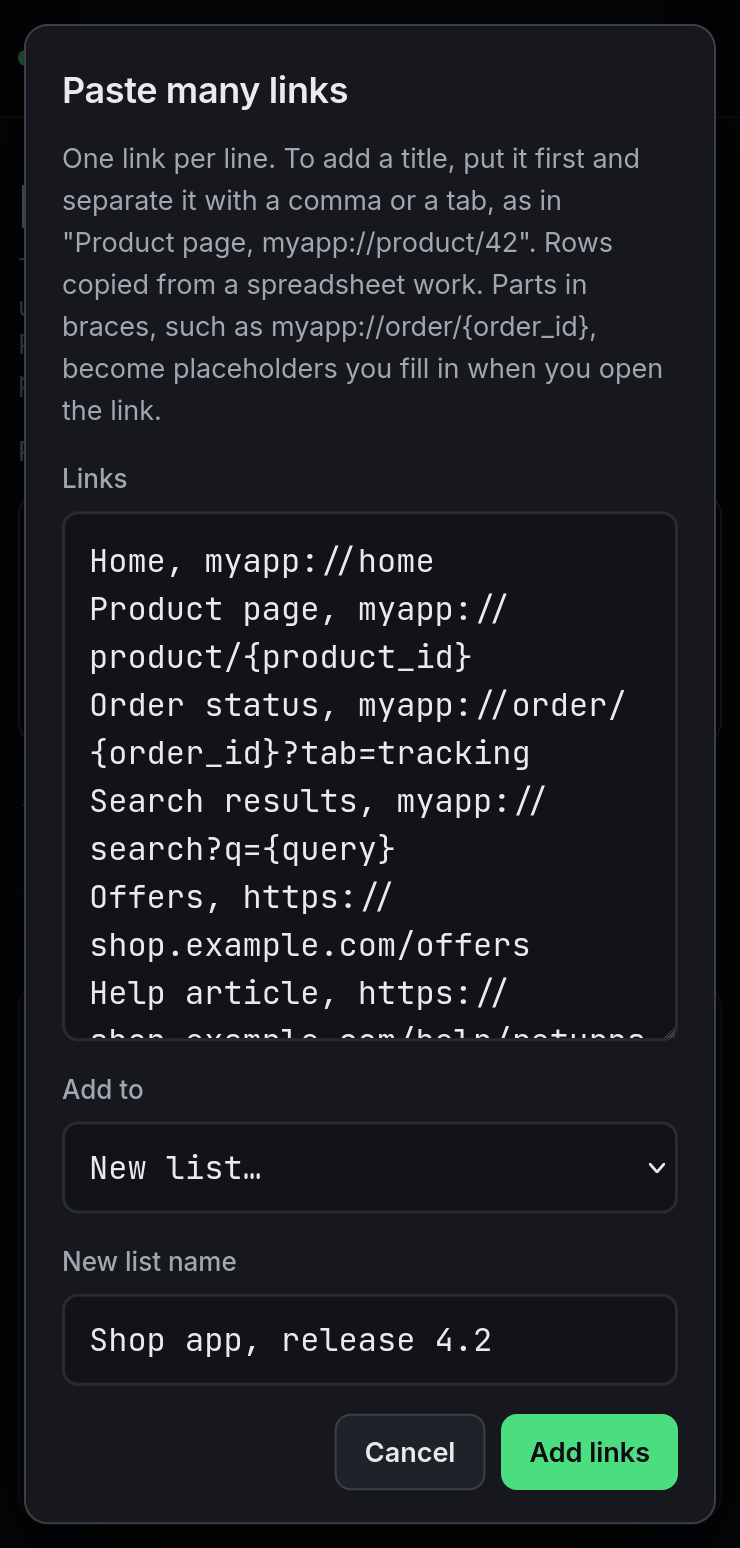
Paste many links. One link per line. To give a link a title, put the title
first and separate it with a comma or a tab, as in
Product page, myapp://product/42. Rows copied from a spreadsheet work as they are. The button is on the Lists tab, and also in the list menu (the ⋯ button, List options). - Import a file. Import a list (JSON or CSV) in the list menu, or Import (JSON or CSV) before you have any list. Each file becomes a new list.
A CSV file needs a header row with a column named url. link,
deep link and deeplink also work. These columns are read if present:
titleorname· the title shown in the list.status·passed,failedoruntested.tested_at· when the link was marked, as a date the browser can parse.tested_url· for templates, the filled link that was tested.
title,url
Home,myapp://home
Product page,https://example.com/product/42
Order details,myapp://order/{order_id}
A file without a url column is read like pasted text, one link per line.
JSON import takes the file that Export as JSON writes, which also carries the
list's environments. javascript: and data: links are dropped from every
source.
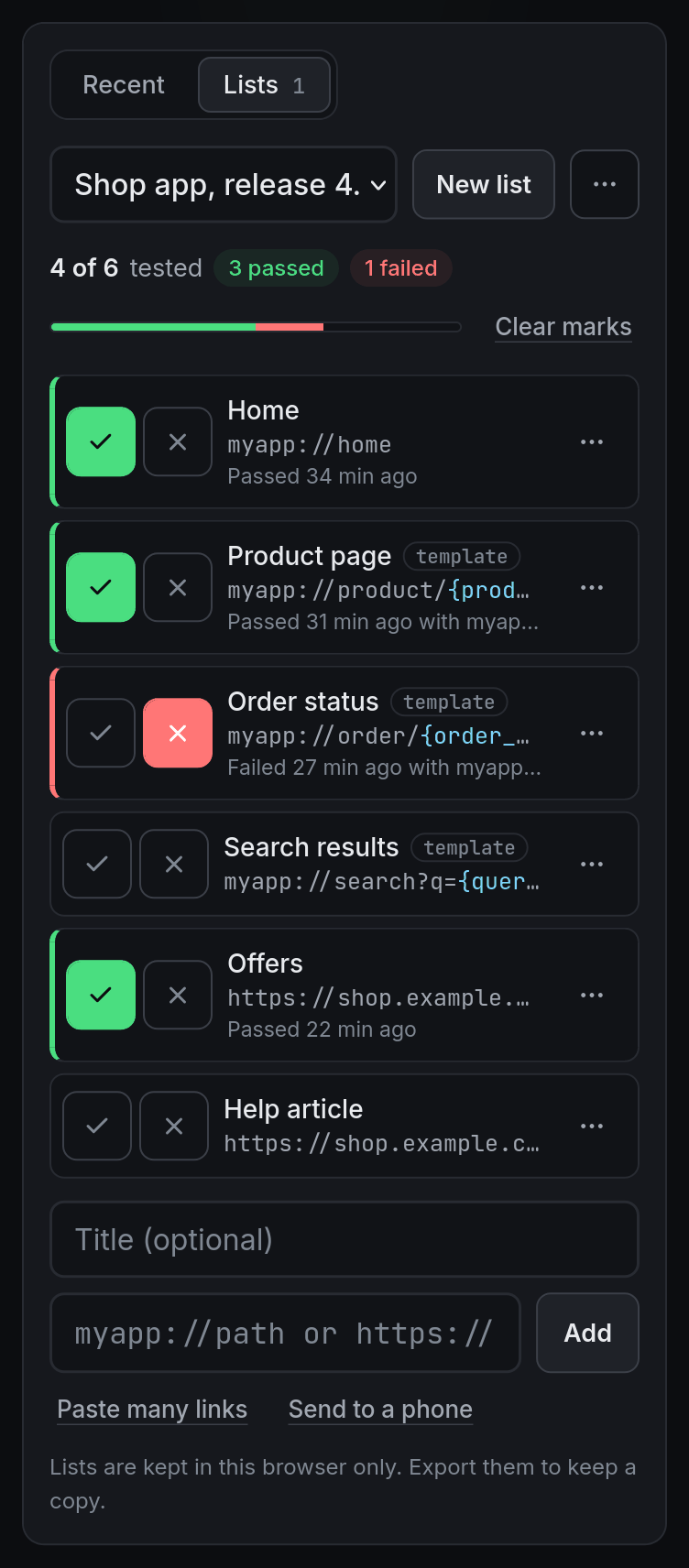
Each row has a passed and a failed button on the left, and on the right an open button (on wider screens) and a ⋯ menu with Edit title or link, Move up, Move down, and moving or copying to another list. Editing a link's address clears its mark, since the old result no longer applies.
2. Links whose IDs change
Order numbers, user IDs and reset tokens are different in every test run. Save those links with a placeholder in braces:
myapp://order/{order_id}
https://example.com/reset?token={token}&user={user_id}
The row gets a template tag. When you open or load it, a form asks for each value and
shows the finished link as you type. Placeholder names use letters, digits, _ and
-. The scheme has to be written out, so {scheme}://home is not a
template. To keep a literal brace in a link, write it as %7B or %7D.
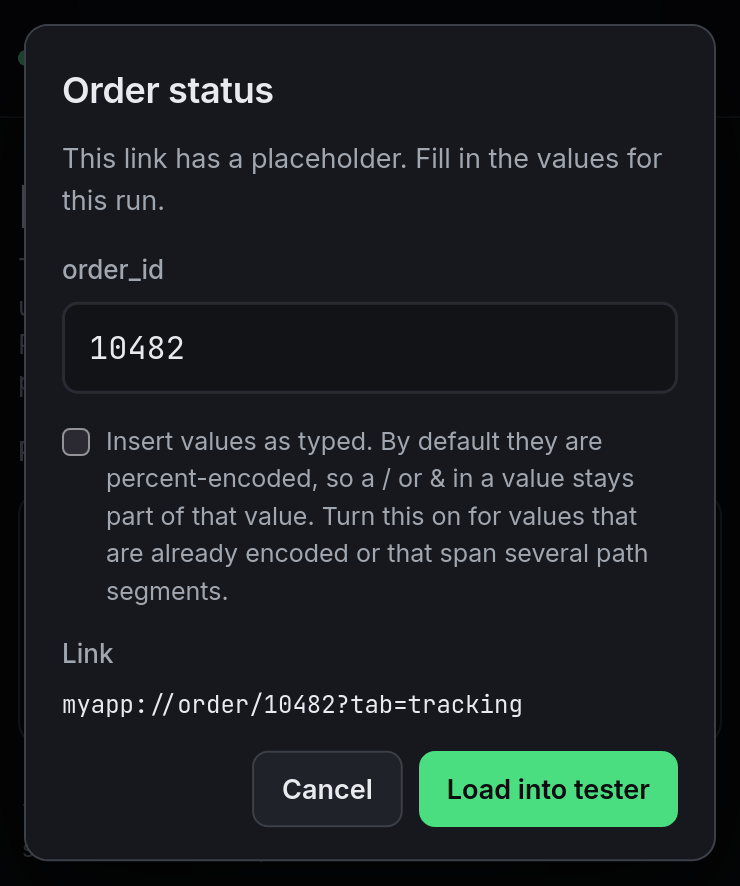
By default each value is percent-encoded, so a /, &, ?
or space you type stays inside that one slot. Tick Insert values as typed for
values that are already encoded, or for a value that is meant to cover several path segments.
Values inserted as typed cannot contain spaces.
The form remembers what you typed, per link and per environment. It also prefills a placeholder
from the last value used under the same name anywhere in the list, so if five links take
{user_id}, you type it once. These values stay in this browser. They are not part
of an export or a list sent to a phone.
3. One list for several environments
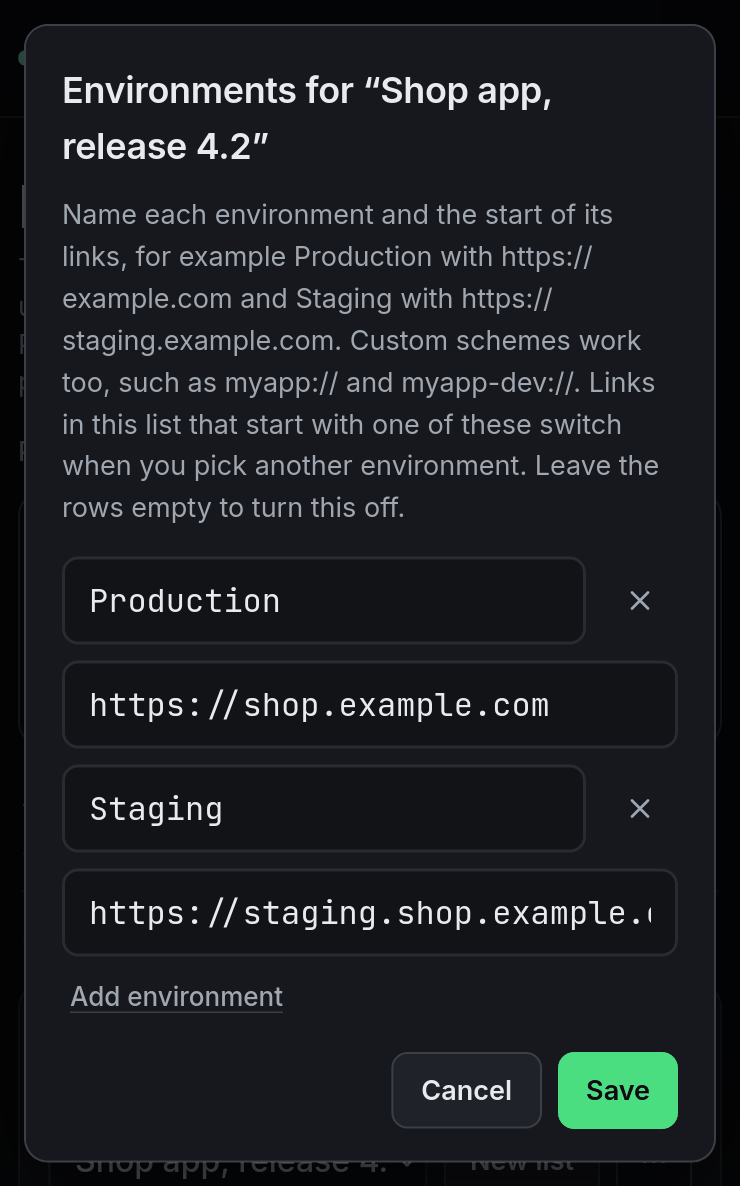
If you test the same paths against production and staging, keep one list and switch the start of the links. Open the list menu and choose Environments…. For a list without environments, the first two rows start as Production and Staging. Fill in where each environment's links start:
Production   https://shop.example.com
Staging      https://staging.shop.example.com
Custom schemes work the same way, for example myapp:// and
myapp-dev:// for a debug build with its own scheme. You need at least two
environments, and up to ten. Leave every row empty to turn the feature off.
An Environment switch then sits above the list. Links that start with one of
the environments switch to the selected one; links that match none stay as they are. The match
stops at a /, ? or #, so https://shop.example.com
does not catch https://shop.example.com.evil.net. Marks are not cleared when you switch,
so clear them yourself if you run the same list once per environment.
4. Get the list onto the test phone
Use Send to a phone under the list, or Send to a phone (QR or link) in the list menu. Scan the QR code with the phone's camera, or copy the link and send it to yourself. The list opens in the phone's browser and is saved there.
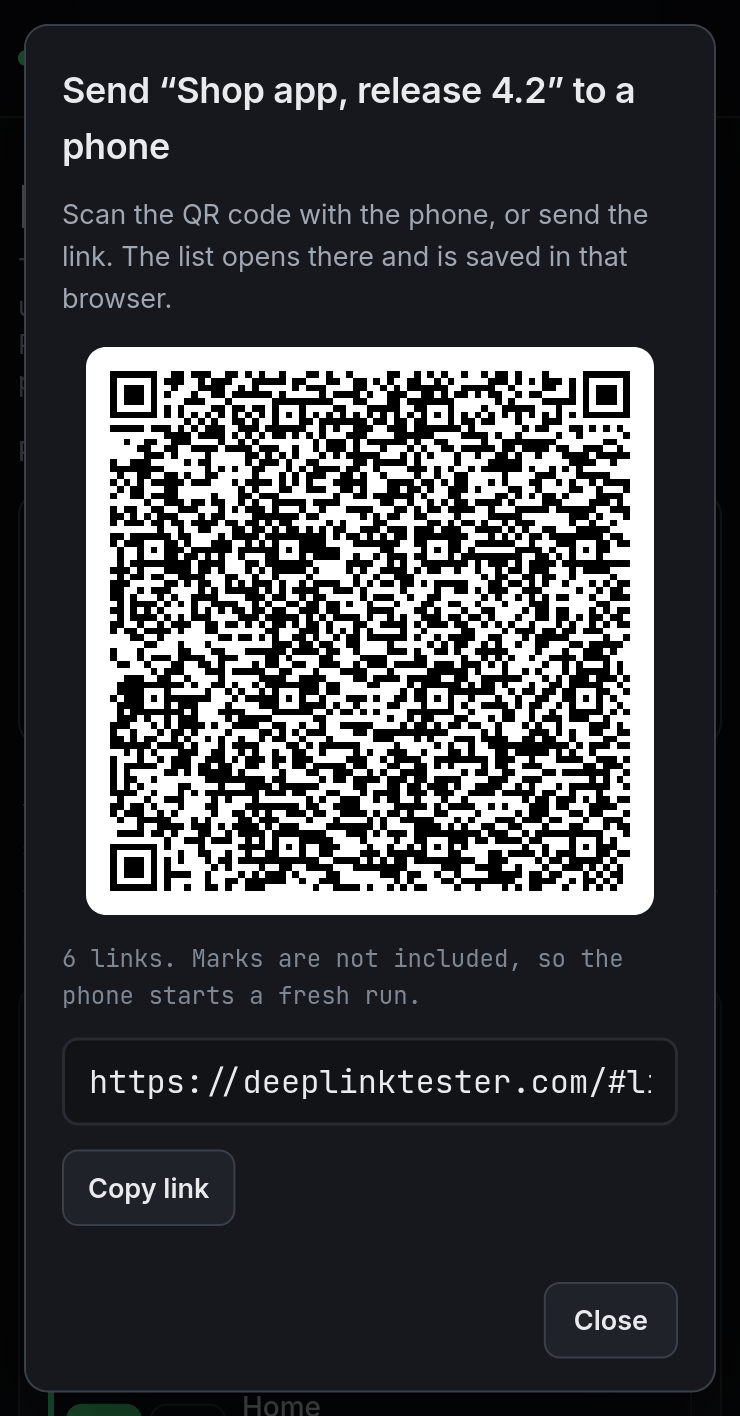
The list link carries:
- the list name, and each link with its title, placeholders included;
- the environments and which one is selected.
It does not carry:
- passed and failed marks, so the phone starts a fresh run;
- values typed into template forms.
The list is encoded in the part of the URL after #, which the browser does not
send to the server. A long list makes a long link. Past about 2,000 characters the dialog shows
no QR code; send the link instead, or export the list and import the file on the phone.
Opening the same link again on the phone reuses the saved list and keeps its marks.
5. Run through it
A list opened from a list link starts in run mode. Tapping a row opens the link on that device instead of loading it into the tester. Template rows ask for their values first. Come back to the browser and mark the result with the passed or failed button. Tap the same button again to remove the mark. Done leaves run mode.
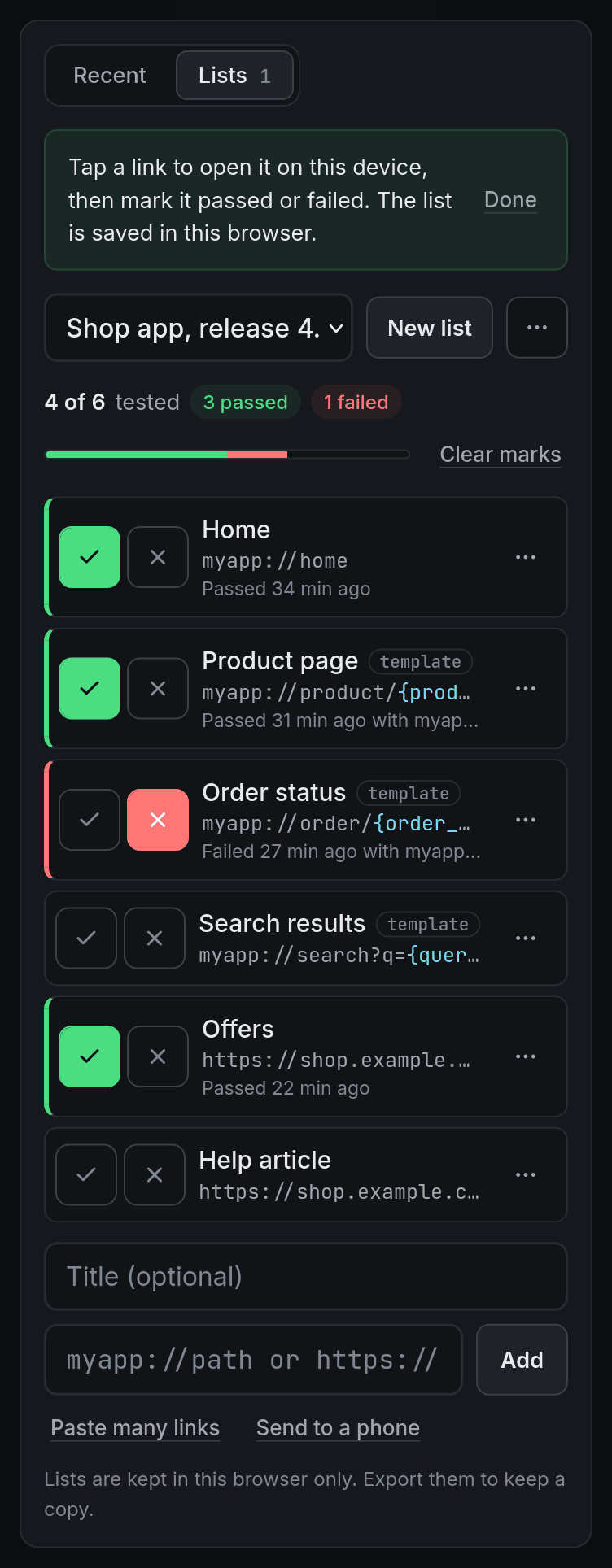
On a desktop, or when you are not in run mode, the open button at the end of each row does the same job. The progress bar shows how many links are tested, passed and failed, and each marked row shows when it was marked.
For a template, the mark also records the filled link you last used for that row in the
current environment, such as myapp://order/58213. The row shows it next to the
time, and it goes into the export. Open the link before you mark it, so the recorded link is
the one you tested.
6. Report and reset
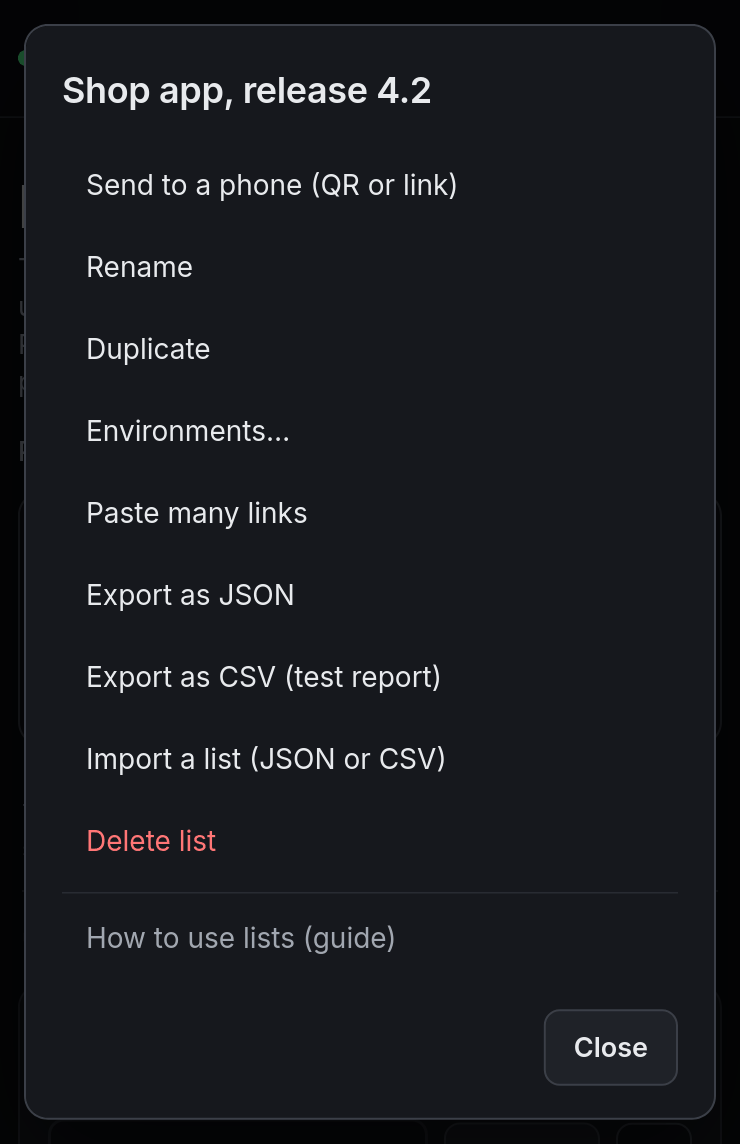
Marks live in the browser where you made them. If you ran the list on the phone, export from the phone. The list menu has two exports:
-
Export as CSV (test report) · columns
title,url,status,tested_atandtested_url. Theurlcolumn has the links for the selected environment, andtested_urlhas the filled link for templates. Attach it to the release ticket or open it in a spreadsheet. - Export as JSON · the whole list with its environments and marks, for a backup or to import on another device.
Cells that a spreadsheet would treat as a formula start with a ' in the CSV.
Importing the CSV again removes it.
For the next release, press Clear marks under the progress bar. Every link goes back to untested, and Undo appears for a few seconds in case you pressed it too early. To keep the old results in the browser as well, use Duplicate in the list menu first: the copy starts with no marks. Values typed into template forms are not copied to the duplicate.
Where your lists are stored
Lists are saved in the browser's local storage on the device you use. Nothing is uploaded, and there is no account, so there is no sync between your laptop and the phone. A list you send to a phone becomes a separate copy there.
- Clearing the site's data or the browser's storage deletes your lists.
- A private window does not keep them after it closes.
- Safari can delete stored data for a site you have not opened for a while.
Export as JSON to keep a copy you control. Importing that file restores the list.
Common questions
Can two testers share results?
Not directly. Send each tester the list link; each phone keeps its own marks. Ask each tester to export the CSV and combine the files, or split the list so each person runs part of it.
Does opening a list link twice create a second list?
No, as long as the list name and links are the same. The saved list opens with its marks. If you changed the list and sent a new link, the phone saves it as a new list, with (shared) added to the name if one with the same name exists.
A link opened the browser instead of the app. Is that a fail?
For an App Link or Universal Link that should open the app, yes. The
App Link troubleshooting guide lists
the causes in the order worth checking. To check the app's handling while
verification is broken, send the link with adb, as described in
Test a deep link with adb.
Open the tester and save your first link to a list.
Keep reading
-
Test a deep link with adb
Send a link to Android from the terminal with
am start. -
When the link opens the browser
The causes and checks, in order.
Official docs
-
Android · Create deep links
Intent filters for the links you are testing.
-
Apple · Supporting universal links
How iOS hands a link to your app.